SQ610 - disabling COMFORT MODE
COMFORT WARM FLOOR DISABLE LEVEL 1 LEVEL 2 LEVEL 3
This function
helps to keep the floor warm, even if the room is warm enough and there is no need to turn on
the heating. User can select 3 levels of warm floor feature.
PLEASE NOTE: it is not an economy feature, as your heating
system may be ON even if there is no heating
demand from the room thermostat. It is COMFORT feature which keeps your
floor warm all the time. It is only for Heating
Mode.
-LEVEL 1 -
Heating will be ON for 11min (3min to
open the actuator, then
actuator will remain open for 5min, then closing the a
ctuator will take another
3min).
The option
is for small rooms with short loops,
which can be heated up quickly.
-LEVEL 2 - Heating will be ON for 15min (3min to open the actuator, then actuator will remain open for 9min, then closing the a ctuator will take another 3min).
The option is for medium rooms with loops of medium length.
-LEVEL 3 -
Heating will be ON for 19min (3min to open the
actuator, then actuator
will remain open for 13min,
then closing the actuator will take another 3min).
The option
is for big rooms, with long loops.
Once per hour.
Level 1 = 11 mins
Level 2 = 15 mins
Level 3 = 19 mins
SQ610 disabling COMFORT MODE
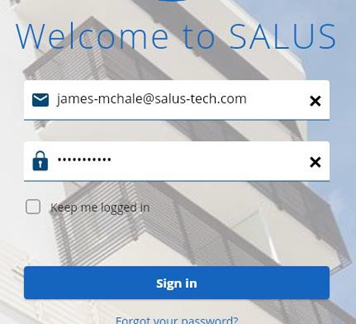
1. LOG INTO THE SALUS PREMIUM
LITE APP
2. ON THE HOME SCREEN
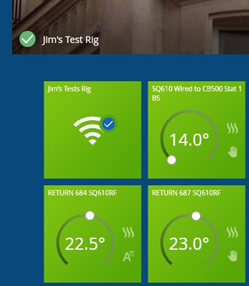
3. CLICK ON THE THERMOSTAT ICON
4. IT SPINS ROUND AND QUADRUPPLES IN SIZE
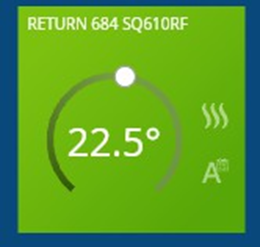
AS A COMPANY WE CANNOT ADVISE ON WIRING AS THERE ARE TOO MANY VARIABLES.
But this is how I would probably do it
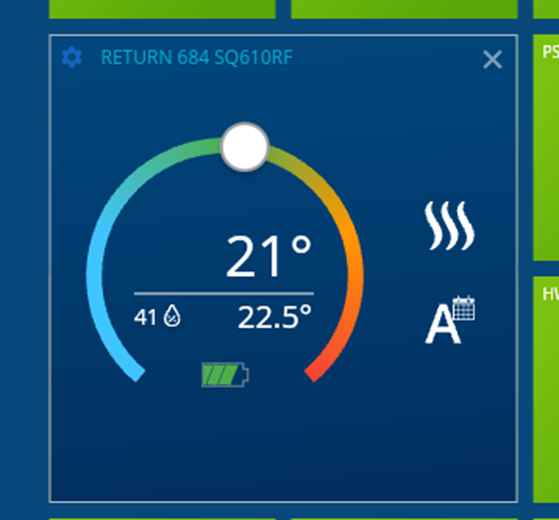
5. CLICK ON THE NAME OF THE THERMOSTAT
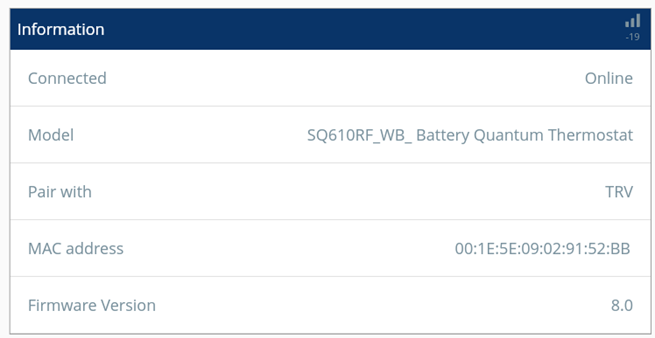
6. IT TAKES YOU INTO THE INFORMATION SCREEN
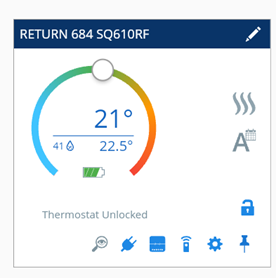
7. CLICK ON THE COG WHEELSYMBOL UNDER THE TEMPERATURE WHEEL
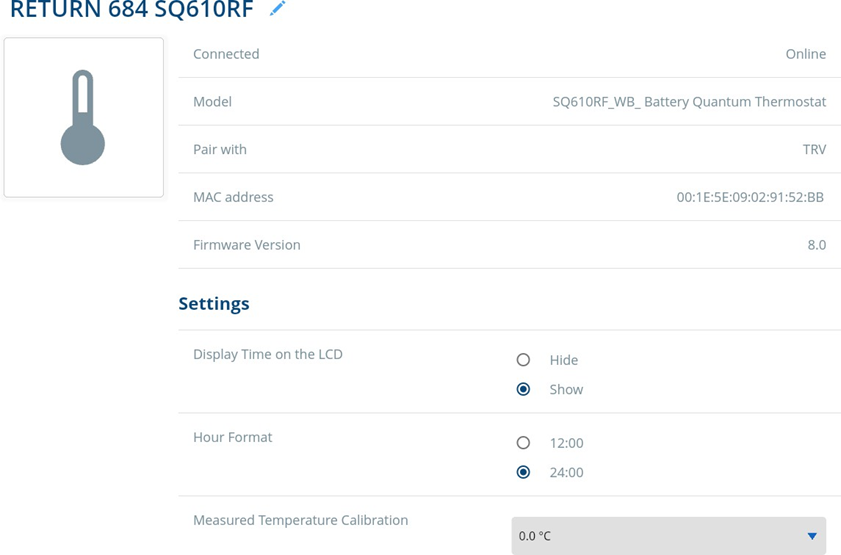
8. THIS SHOULD DISPLAY THE SETTINGS FOR THE THERMOSTAT


1. LOG INTO THE SALUS PREMIUM
LITE APP
2. ON THE HOME SCREEN
3. CLICK ON THE THERMOSTAT ICON
4. IT SPINS ROUND AND QUADRUPPLES IN SIZE
AS A COMPANY WE CANNOT ADVISE ON WIRING AS THERE ARE TOO MANY VARIABLES.
But this is how I would probably do it
5. CLICK ON THE NAME OF THE THERMOSTAT
6. IT TAKES YOU INTO THE INFORMATION SCREEN
7. CLICK ON THE COG WHEELSYMBOL UNDER THE TEMPERATURE WHEEL
8. THIS SHOULD DISPLAY THE SETTINGS FOR THE THERMOSTAT
9. GO TO THE BOTTOM OF THE PAGE | 10. AND CLICK ON ADVANCED SETTINGS |
11. A WARNING BOX IS DISPLAYED | 12. CLICK ON NEXT |
13. THIS TAKES YOU ONTO THE ADVANCED SETTINGS SCREEN | 14. SCROLL DOWN TO THE ‘’COMFORT WARM FLOOR’’ BOX |
| 15. CLICK ON THE ‘’COMFORT WARM FLOOR’’ BOX | 16. AND SELECT ‘’DISABLED’’ |
16. AND ‘’DISABLED’’ SHOULD
BE DISPLAYED | 17. AND GO DOWN TO THE BOTTOM AND CLICK ‘’SAVE’’ |