Underfloor heating/cooling changeover with a heat pump using SR600 relays
Salus Smart Home controls can be used with underfloor systems that have a compatible heat pump capable of producing heating or cooling modes.
Important: You must check that your heat pump can be controlled with a 230V switched live on the heat and cool demands. Not all heat pumps use a 230V switched feed – always consult the manufacturer, and contact Salus Technical Support for advice on using our smart systems with your heat pump.
Once the wiring centre and thermostats are set up and connected to the gateway and app, you can add automation for the heat/cool changeover function.
When the CB12RF or KL08RF volt-free Heat/Cool terminals are closed, the wiring centre switches to cooling mode and the thermostats operate as cooling thermostats. When the Heat/Cool volt-free terminals are open, the wiring centre and thermostats return to heat mode.
Devices required for smart underfloor controls with heat/cool changeover automation:
- UG600, UGE600 or UG800 Salus Universal Gateway
- 3× SR600 Salus smart relays
- CB12RF or KL08RF smart wiring centre
- Smart thermostats set up to control the KL08RF zones, such as the SQ610RF Quantum
- OneTouch rules written in the app to operate the heat/cool demand
In this example the three SR600 relays are named:
- Cooling Enable Relay – operates the Heat/Cool changeover on the wiring centre.
- Heat relay – activates to signal the heat pump’s heat mode.
- Cool relay – activates the heat pump’s cool mode.
The Cooling and Heating relays are wired to produce a switched live feed when either is active.
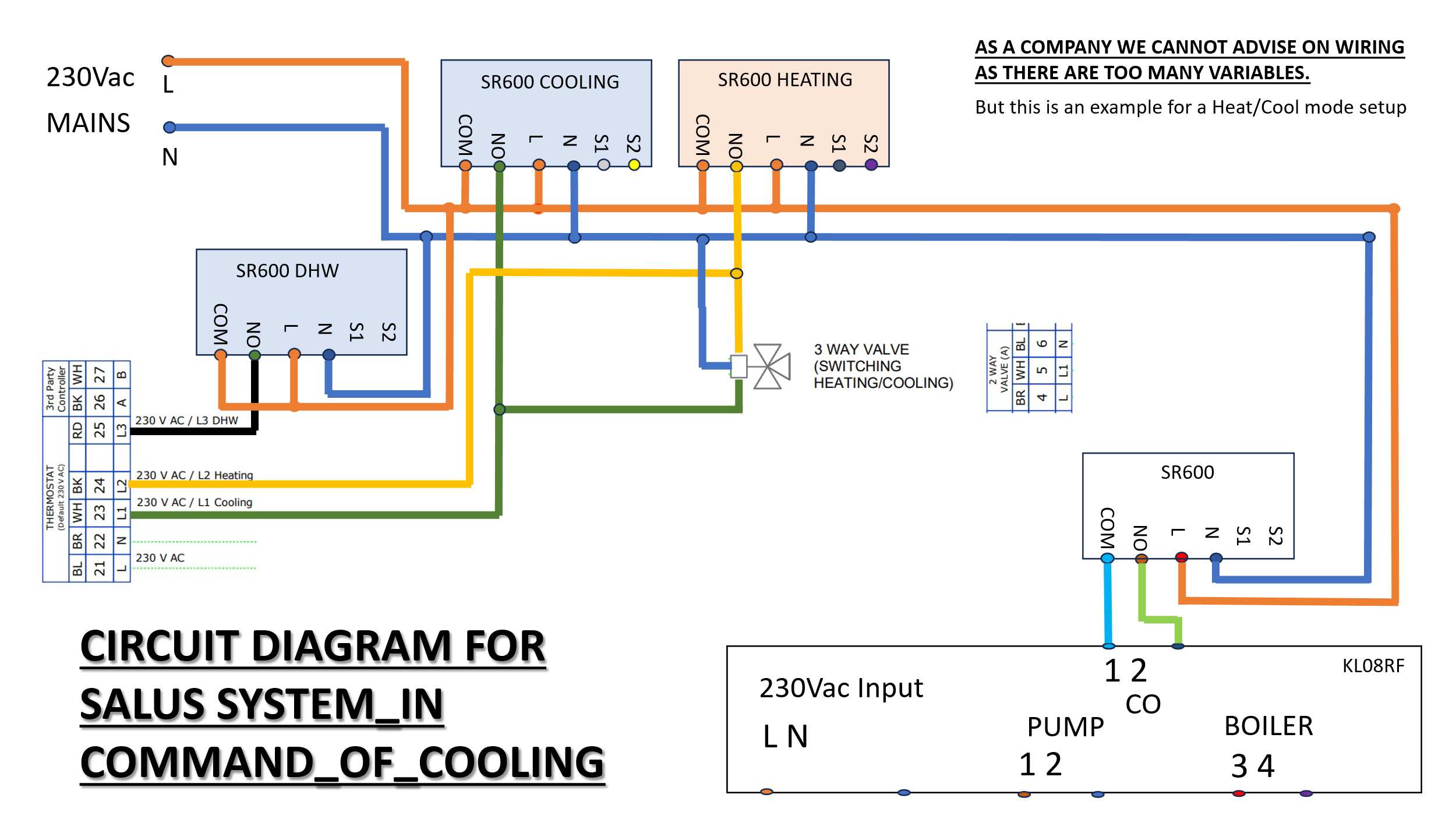
Figure 1 – Example wiring for a Heat/Cool setup (Salus system in command of cooling). As a company we cannot advise on wiring as there are too many variables; this is an example only.
The OneTouch rules need to be written so the correct heat or cool relay is activated when the user decides whether their HVAC system should be in heat or cool mode.
Cooling mode – the cooling-mode rule switches the Cool relay ON and the Heat relay OFF:
- In the app go to Equipment > OneTouch.
- Click Add an OR OneTouch.
- When, State of Equipment, Cooling Enable Relay is ON.
- Do this, Change device property, Turn Cooling Relay ON.
- Then do this, Change device property, Turn Heating relay OFF.
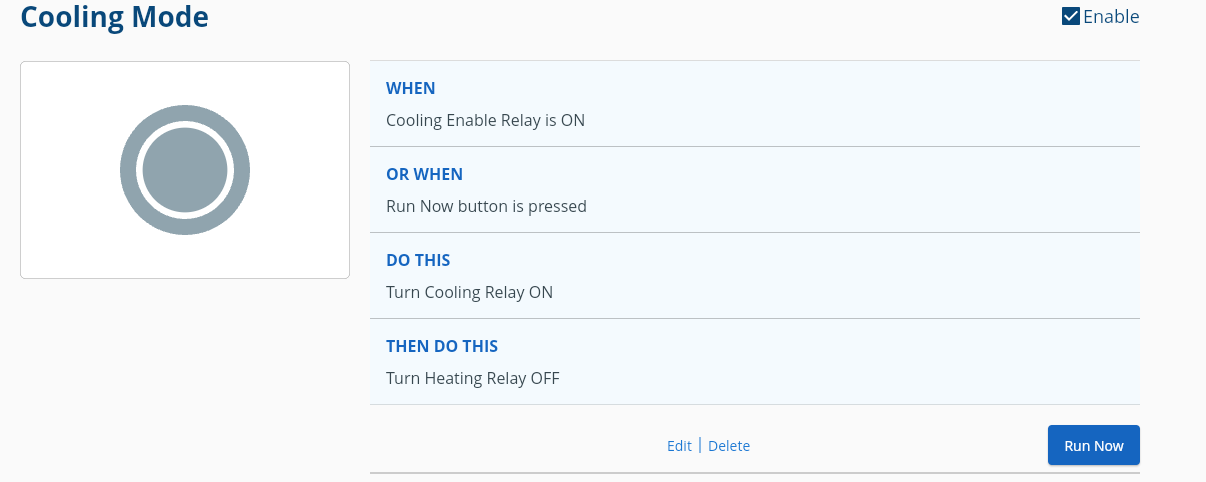
Figure 2 – “Cooling Mode” OneTouch rule.
Heat mode – the heat-mode rule switches the Cool relay OFF and the Heat relay ON:
- In the app go to Equipment > OneTouch.
- Click Add an OR OneTouch.
- When, State of Equipment, Cooling Enable Relay is OFF.
- Do this, Change device property, Turn Cooling Relay OFF.
- Then do this, Change device property, Turn Heating relay ON.
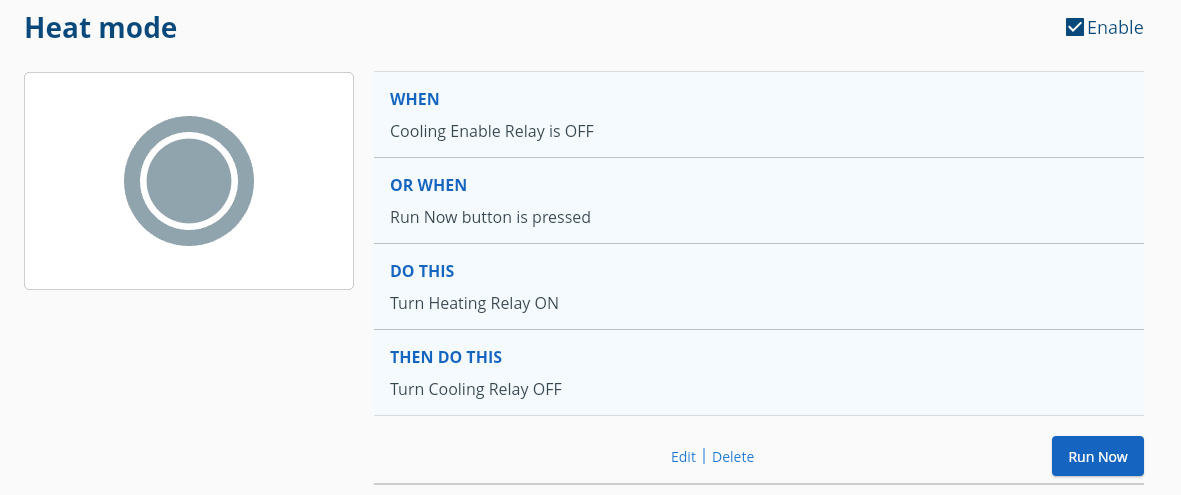
Figure 3 – “Heat Mode” OneTouch rule.
Finally, set up two virtual buttons in the app to switch the system between heating and cooling modes.
Cool mode button:
- In the app go to Equipment > OneTouch.
- Click Add an OR OneTouch.
- Do this, Change device property, Turn Cooling Enable Relay ON.
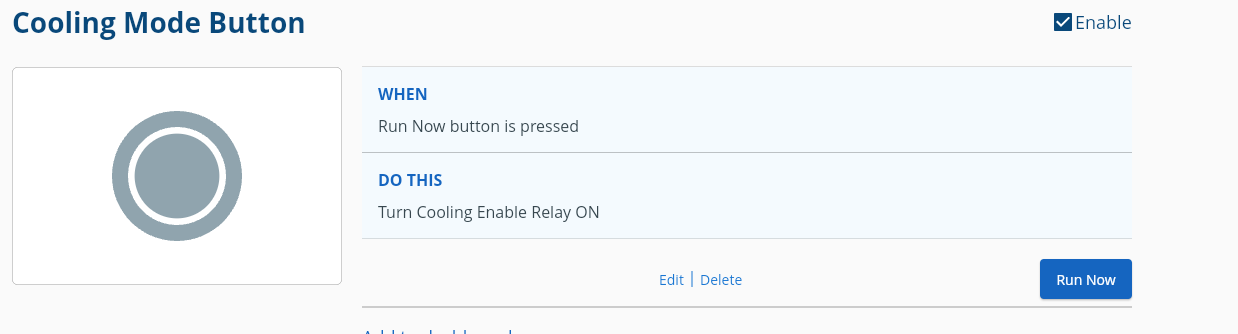
Figure 4 – Cool mode virtual button.
Heat mode button:
- In the app go to Equipment > OneTouch.
- Click Add an OR OneTouch.
- Do this, Change device property, Turn Cooling Enable Relay OFF.
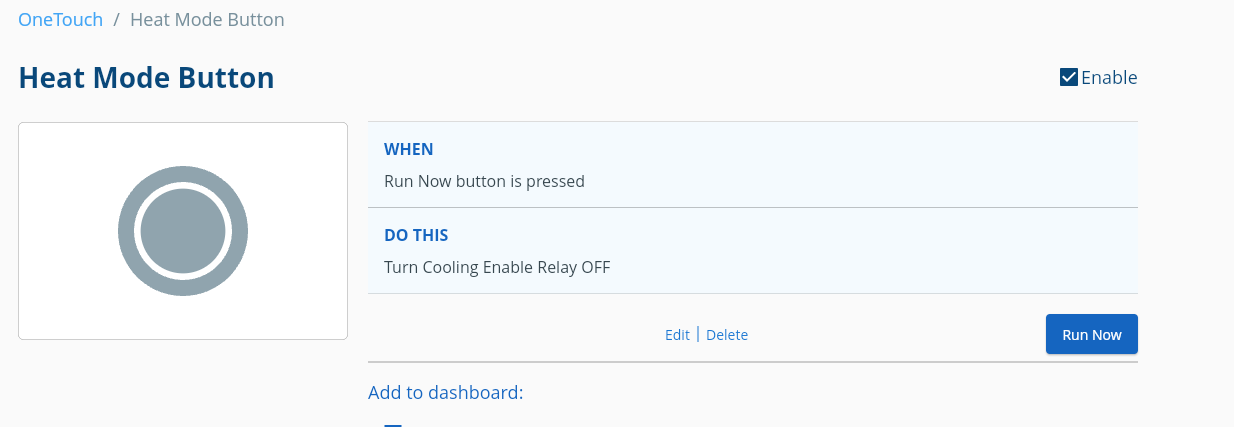
Figure 5 – Heat mode virtual button.